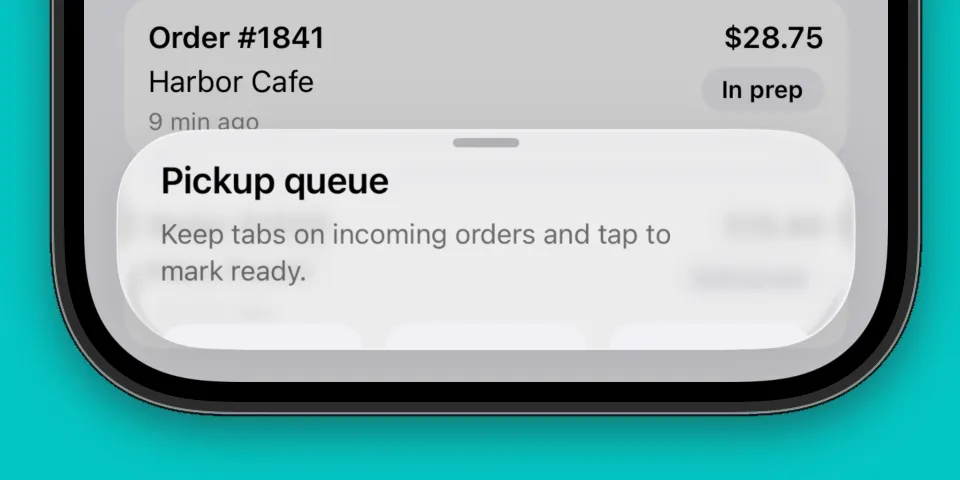
Detent Bottom Sheet
Ever wondered how Apple Maps implements the floating bottom sheet that snaps to different heights? You might be as surprised as I was to learn you can build your own in just a few lines of code using SwiftUI. I’ll walk through how to build this custom bottom sheet so you can use it directly in your own apps.
We’ll build a drop-in replacement for .sheet(isPresented:) that has a few preset heights that are snappable, or “detents”, that you can call on your views:
VStack {
    // Your view
}
.detentSheet(isPresented: $isPresented) {
    Text("Hello, world!")
}
Creating the view modifier
First, let’s create a view modifier named DetentSheetPresenter that displays a blank sheet:
import SwiftUI

struct DetentSheetPresenter<SheetContent: View>: ViewModifier {

    @Binding var isPresented: Bool
    @ViewBuilder let sheetContent: SheetContent

    func body(content: Content) -> some View {
        content
            .sheet(isPresented: $isPresented) {
            }
    }
}
@ViewBuilder is a special attribute that’s typically used for properties and parameters that produce child views. For anyone interested, there’s an excellent talk about @ViewBuilder and general SwiftUI performance in this talk with engineers from Apple.
Next, we’ll display the sheet content inside of a scroll view:
struct DetentSheetPresenter<SheetContent: View>: ViewModifier {
    @Binding var isPresented: Bool
    @ViewBuilder let sheetContent: SheetContent

    func body(content: Content) -> some View {
        content
            .sheet(isPresented: $isPresented) {
                ScrollView {
                    sheetContent
                }
            }
    }
}
Let’s also add the detentSheet(isPresented:) function as an extension on View:
extension View {
    func detentSheet<Content: View>(isPresented: Binding<Bool>, @ViewBuilder content: @escaping () -> Content) -> some View {
        modifier(
            DetentSheetPresenter(isPresented: isPresented, sheetContent: content)
        )
    }
}
The sheet doesn’t do much yet, but you can now present it in your views like this:
VStack {
    // Your view
}
.detentSheet(isPresented: $isPresented) {
    Text("Hello, world!")
}
Basic detents
We now have the foundation for our detent sheet. We can add detents by simply using .presentationDetents() and let SwiftUI handle the rest:
func body(content: Content) -> some View {
	content
	    .sheet(isPresented: $isPresented) {
	        ScrollView {
	            sheetContent
		            .presentationDetents([.height(120), .medium, .large])
	        }
	    }
}
This displays a sheet with a fixed height of 120 points, but can also be resized to medium and large sizes which are preset by the system. This is all you need for simple use cases that just need the sheet to snap between a few heights.
Customizing behavior with state tracking
SwiftUI also offers several APIs for those who want to customize their sheet. Let’s consider a use case where we want to display our detent sheet and enable the content to scroll when we’ve reached the medium height. By default, SwiftUI only enables content scrolling at the large height.
To do this, we’ll start keeping track of the current detent and content interaction setting as @State on our view. Let’s add a few properties to our view modifier:
private static var peekDetent: PresentationDetent {
    .height(120)
}

@State private var selectedDetent: PresentationDetent = peekDetent
@State private var sheetInteraction: PresentationContentInteraction = .resizes
We’ll store the hardcoded height as a reusable property peekDetent so we don’t need to rewrite it multiple times later in the file. The .resizes content interaction setting instructs the sheet to resize.
Next, let’s update our sheet content:
func body(content: Content) -> some View {
    content
        .sheet(isPresented: $isPresented) {
            sheetContent
                .presentationDetents(
                    [Self.peekDetent, .medium, .large],
                    selection: $selectedDetent
                )
                .presentationContentInteraction(sheetInteraction)
        }
}
We’re now keeping track of the currently selected detent, and we’re specifying how the sheet should respond to content interaction.
Now we just need to tie it together with an observer when the sheet height changes. Let’s add an onChange(of:) modifier to the view’s content:
func body(content: Content) -> some View {
    content
        .sheet(isPresented: $isPresented) {
            ScrollView {
                sheetContent
            }
            .presentationDetents(
                [Self.peekDetent, .medium, .large],
                selection: $selectedDetent
            )
            .presentationContentInteraction(sheetInteraction)
        }
        .onChange(of: selectedDetent) { _, newValue in
	        // This fires each time `selectedDetent` changes
            sheetInteraction = if newValue == Self.peekDetent {
                .resizes
            } else {
                .scrolls
            }
        }
}
Now each time selectedDetent changes, we re-evaluate if the sheet should resize or scroll. We only set .resizes for the shortest height peekDetent, and .scrolls at .medium and .large heights.
Interacting with the background
You may have noticed the bottom sheet in apps like Apple Maps float above content, and you can interact with the background freely. By default, sheets in SwiftUI will dismiss if you try to interact with the background. We can change this behavior in our sheet by adding a few more view modifiers to our scroll view:
ScrollView {
    sheetContent
}
.presentationDetents(
    [Self.peekDetent, .medium, .large],
    selection: $selectedDetent
)
.presentationContentInteraction(sheetInteraction)
.presentationBackgroundInteraction(.enabled) // new
.interactiveDismissDisabled() // new
The .presentationBackgroundInteraction(.enabled) modifier enables background interaction with the sheet, so the sheet will no longer dismiss if you tap or scroll outside of it. We also added the .interactiveDismissDisabled() modifier so you can’t swipe to dismiss the sheet to get the full floating experience.
Wrapping up
Detent sheets are a great UI pattern for surfacing contextual information without breaking the flow of the background content. Apple Maps and Stocks are classic examples of apps that use detent sheets prominently. SwiftUI added direct support for detent sheets starting with iOS 16.0.
I hope you found the article insightful and it helps you build something great! Here’s the full code you can drop into a project:
import SwiftUI

struct DetentSheetPresenter<SheetContent: View>: ViewModifier {

    private static var peekDetent: PresentationDetent {
        .height(120)
    }

    @Binding var isPresented: Bool
    @State private var selectedDetent: PresentationDetent = peekDetent
    @State private var sheetInteraction: PresentationContentInteraction = .resizes

    @ViewBuilder let sheetContent: SheetContent

    func body(content: Content) -> some View {
        content
            .sheet(isPresented: $isPresented) {
                ScrollView {
                    sheetContent
                }
                .presentationDetents(
                    [Self.peekDetent, .medium, .large],
                    selection: $selectedDetent
                )
                .presentationContentInteraction(sheetInteraction)
                .presentationBackgroundInteraction(.enabled)
                .interactiveDismissDisabled()
            }
            .onChange(of: selectedDetent) { _, newValue in
                sheetInteraction = if newValue == Self.peekDetent {
                    .resizes
                } else {
                    .scrolls
                }
            }
    }
}

extension View {
    func detentSheet<Content: View>(isPresented: Binding<Bool>, @ViewBuilder content: @escaping () -> Content) -> some View {
        modifier(
            DetentSheetPresenter(isPresented: isPresented, sheetContent: content)
        )
    }
}